The PocDoc app requires both camera access and notifications to be enabled in order to complete a test. If either permission is not granted, the app will not be able to complete the test process.
⚠️ Important: The app prompts you to grant these permissions during the test, but this prompt appears at the very end of the test flow. We strongly recommend enabling both permissions as soon as you install the app to avoid interruption.
Why does the app need camera access?
The PocDoc app uses your device's camera to scan and read your test cassette. Without camera access the app cannot analyse your result.
Why does the app need notifications?
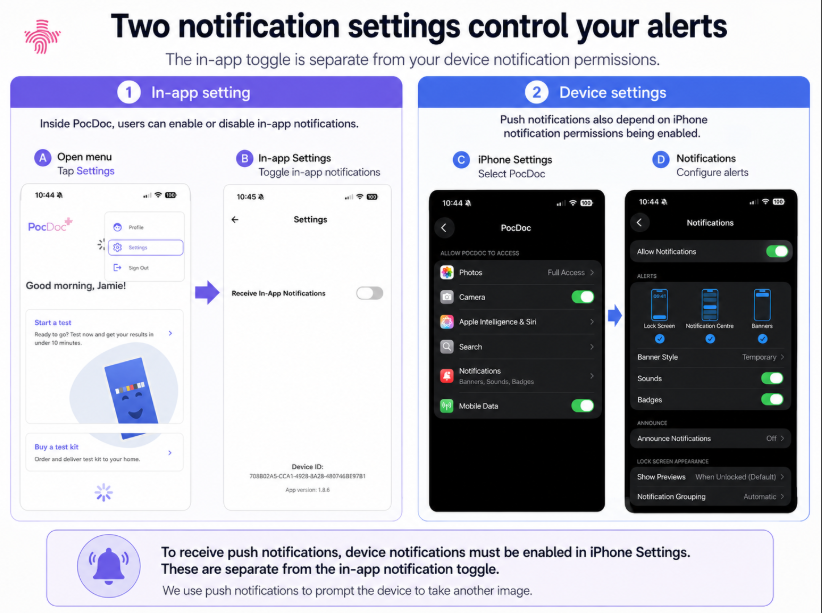
The PocDoc app uses push notifications to prompt you to take images during the test. There are two separate notification settings that both need to be enabled — the in-app notification toggle, and your device's notification permissions. If either is off, the prompts will not come through.
How to enable permissions
iPhone (iOS)
Step 1 — Enable in-app notifications
- Open the PocDoc app and tap Settings from the menu.
- Make sure Receive In-App Notifications is toggled on.
Step 2 — Enable device notifications
- Open your iPhone Settings.
- Scroll down and tap PocDoc.
- Tap Notifications and make sure Allow Notifications is switched on.
Step 3 — Enable camera access
- In your iPhone Settings, tap PocDoc.
- Make sure Camera is switched on.
Android
- Open your device Settings.
- Tap Apps (or Application Manager, depending on your device).
- Tap PocDoc.
- Tap Permissions and make sure Camera is enabled.
- Go back and tap Notifications and make sure they are enabled.
- Open the PocDoc app, tap Settings, and make sure Receive In-App Notifications is toggled on.
[Android screenshots coming soon.]
Still having trouble?
If you have enabled both permissions and are still unable to complete a test, please contact us.
Was this article helpful?
That’s Great!
Thank you for your feedback
Sorry! We couldn't be helpful
Thank you for your feedback
Feedback sent
We appreciate your effort and will try to fix the article